
Cycle Modes
Each hotkey in AppSwitcher has a cycle mode that controls what happens when you press it. Choosing the right mode for each app makes your workflow feel natural and predictable.
NextWindow
Section titled “NextWindow”Best for: Apps you frequently open multiple windows of (e.g., Browser, File Explorer, VS Code).
Pressing the hotkey cycles through all open windows of the target application, one by one. If only one window is open, it brings that window into focus.
Direct Selection (Numeric Keys)
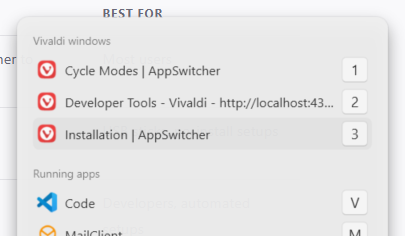
Section titled “Direct Selection (Numeric Keys)”You don’t have to cycle one by one. AppSwitcher assigns a stable number (1–0) to every open window of the target application.
- How it works: While holding your modifier key, simply tap a number to “teleport” directly to that specific window. For example, if
Modifier + Eis your shortcut for Vivaldi, pressingModifier + Ethen2takes you straight to your second window. - No Overlay Required: This feature is always active. While the Show Overlay setting (see screenshot) helps visualize which number belongs to which window, the shortcuts work even if the overlay is turned off.
- Stable Indexing: These numbers are tied to the internal window handle. They won’t shift positions while you are working; they only change if a window is closed and a new one is opened.
NextApp
Section titled “NextApp”Best for: Grouping multiple apps on a single hotkey.
Round-robins between multiple applications assigned to the same hotkey, switching to each one in sequence. Useful for toggling between two related apps (e.g. a browser and a design tool).
Example: Both Figma and Chrome are assigned to Apps+D. Each press alternates between them.
Best for: Apps you want to quickly show and dismiss (e.g. terminal, music player).
Pressing the hotkey brings the app into focus. Pressing it again minimises the focused window. Subsequent presses toggle visibility.
Example: Apps+T opens your terminal. Pressing Apps+T again minimises it out of the way.