
Assigning Hotkeys
Configuring Applications
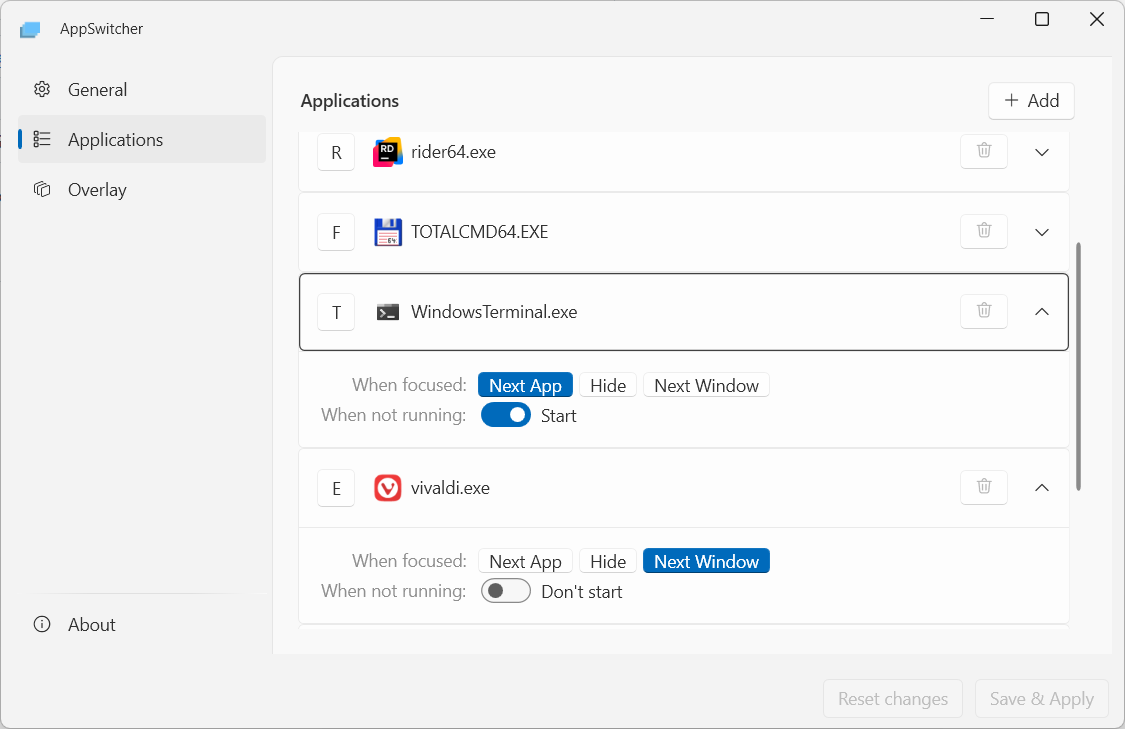
Section titled “Configuring Applications”Each application you want to control with AppSwitcher is listed in the Applications tab. Here, you can assign specific keys, choose how windows cycle, and decide if an app should launch automatically if it isn’t running.
Adding an Application
Section titled “Adding an Application”Instead of manual path-finding, AppSwitcher helps you pick from what’s already on your system.
- Click the + Add button in the top-right corner.
- Choose your app: * Select from currently running applications from the list.
- Use the Search bar to find a specific process.
- Click Browse for file… to manually select an
.exeif it’s not running.
- Once added, press the key you want to use with your modifier.
- Click Save & Apply at the bottom to activate your changes.
Customizing Behavior (Expansion)
Section titled “Customizing Behavior (Expansion)”By default, application entries are collapsed to keep the list organized. Click on any entry to expand its advanced settings:
- When focused (Cycle Mode): Choose how AppSwitcher behaves when you press the hotkey while the app is already in focus. More on cycle modes in the next section.
- When not running: Toggle the Don’t start/Start switch. If enabled (default), pressing the hotkey while the app is closed will attempt to launch it.
Removing an Application
Section titled “Removing an Application”Click the trash icon next to any hotkey to remove it.
Editing a Hotkey
Section titled “Editing a Hotkey”Click the Key Button on the left side of the application entry (the square containing the letter) and then press the new key you want to assign. After making your changes, click Save & Apply at the bottom to activate them.